What to do if you have a poor signal and cannot make calls on your Samsung Galaxy device
If your Samsung Galaxy device has a weak signal or cannot make calls, it is usually caused by network settings, SIM issues, or your location. You can fix this by checking your network settings, moving to a better coverage area, and resetting connections if needed.
This guide provides step-by-step solutions to restore signal and calling functionality on your Samsung Galaxy device.
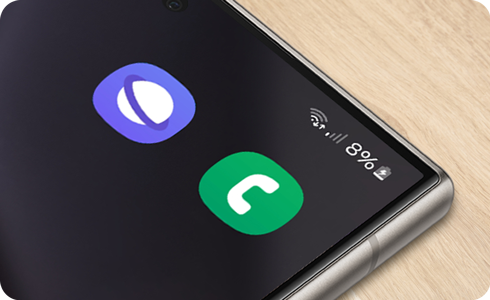
External solutions
Check your carrier and coverage
- Make sure your mobile account is active.
- Confirm you have not reached usage limits.
- Check for any network outages with your service provider.
- Ensure you are within your service provider’s coverage area.
Change your location
Remove accessories
Restart your device
- Turn off your device.
- Turn it back on to refresh the network connection.
Check your device’s settings
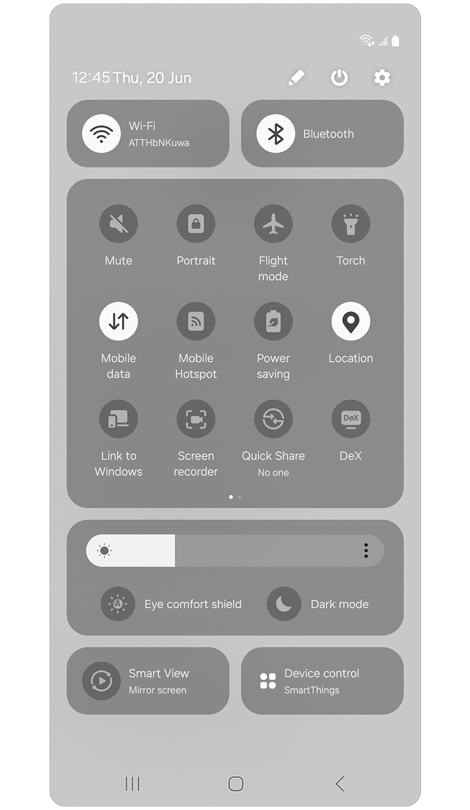
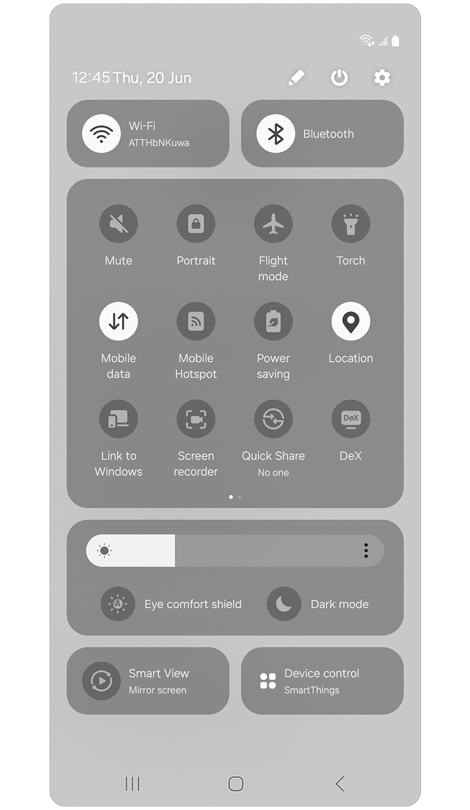
Step 1. Open the Quick settings panel.
Make sure the following are set properly:
* Flight mode should be disabled
* Mobile Data should be enabled
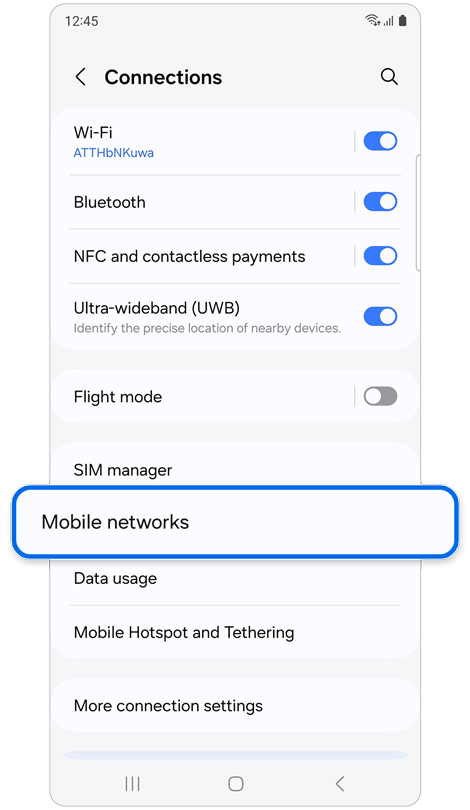
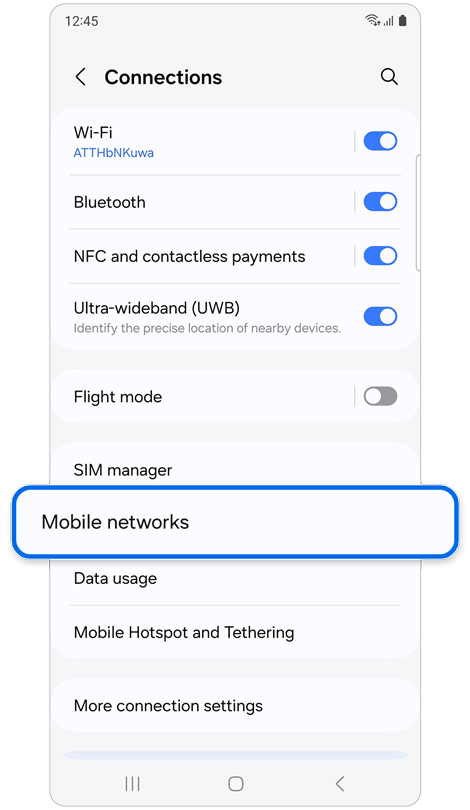
Step 2. Open Settings > Select Connections > Select Mobile networks.
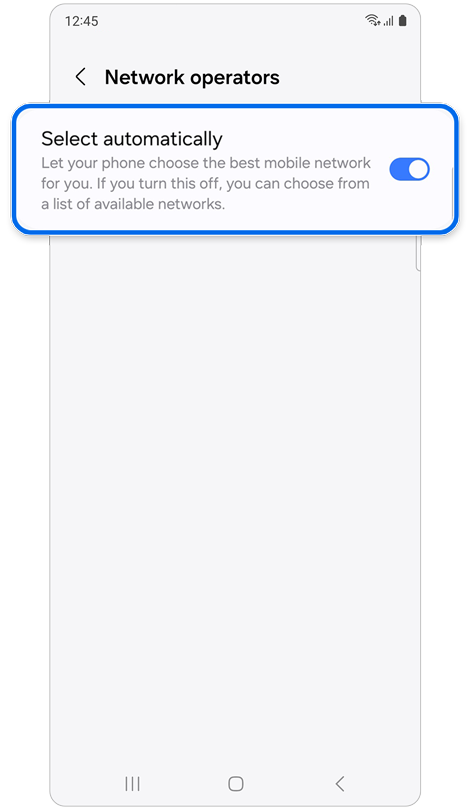
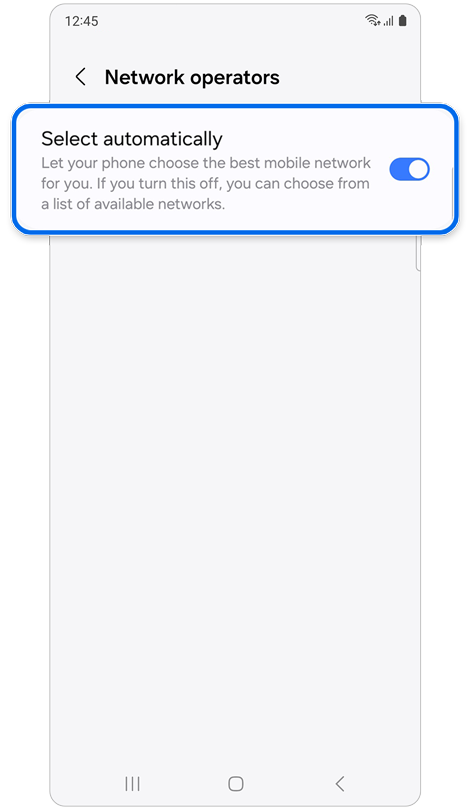
Step 3. Tap Network operators > Tap Select automatically.
* This option may not be supported depending on a carrier.
Reset your SIM Card
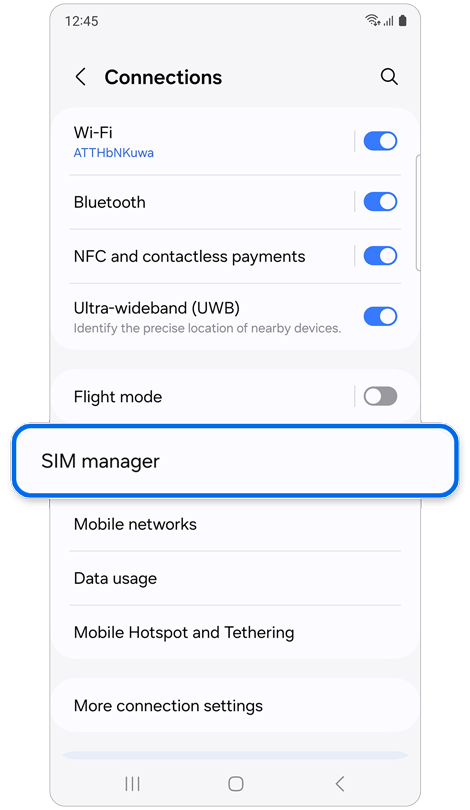
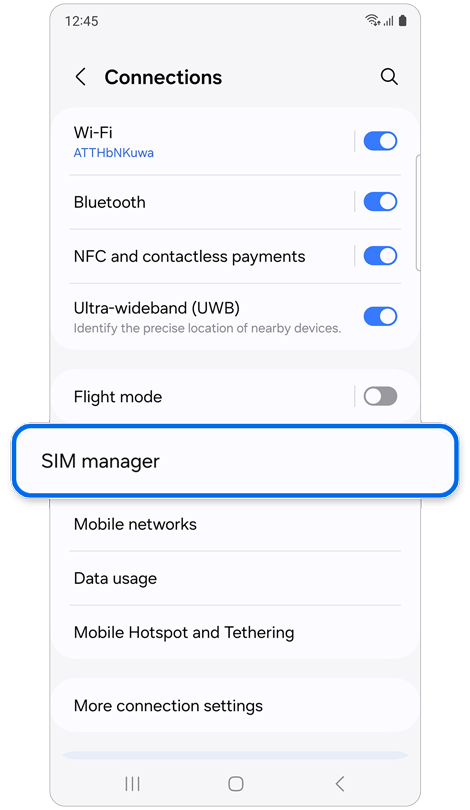
Step 1. Open Settings > Tap Connections > Select SIM manager.
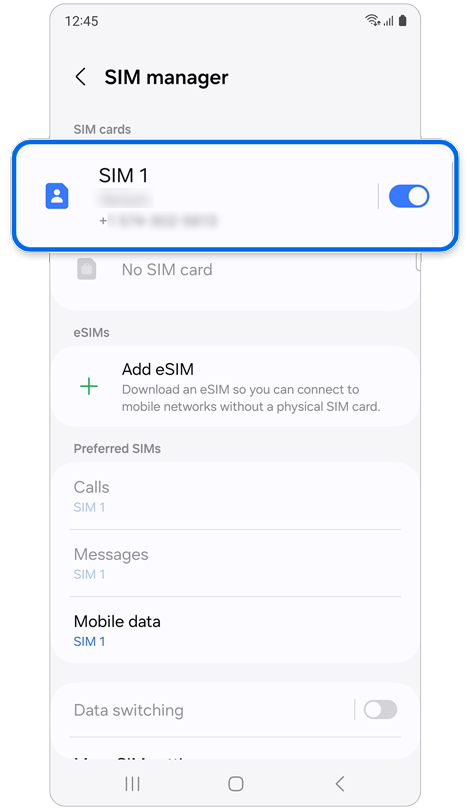
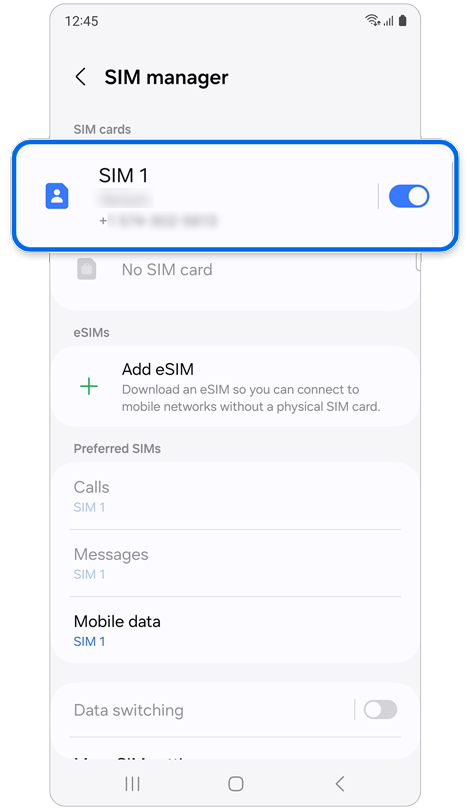
Step 2. Tap the switch next to SIM 1 > Tap Turn off.
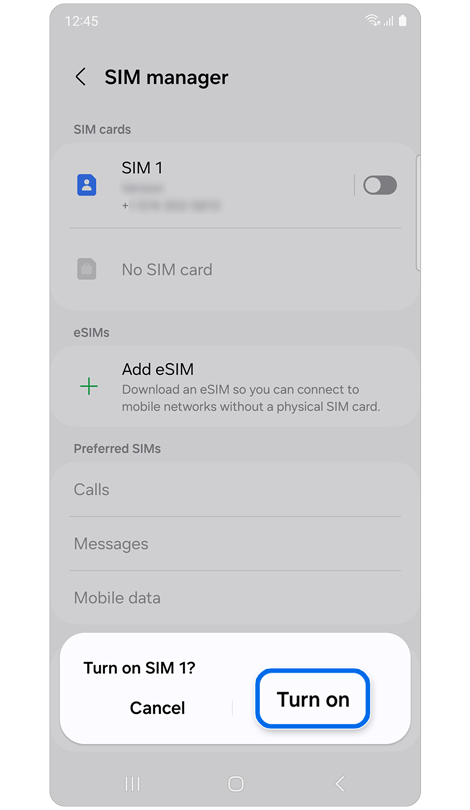
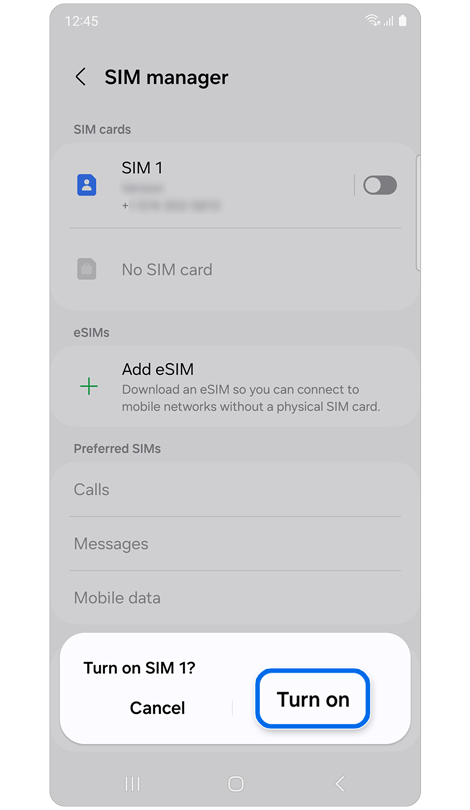
Step 3. Tap the switch again > Tap Turn on.
Check the physical SIM card
Reset the network settings
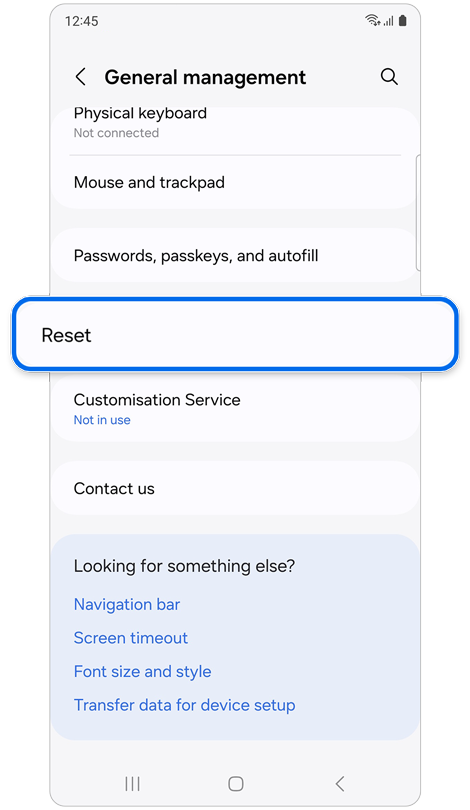
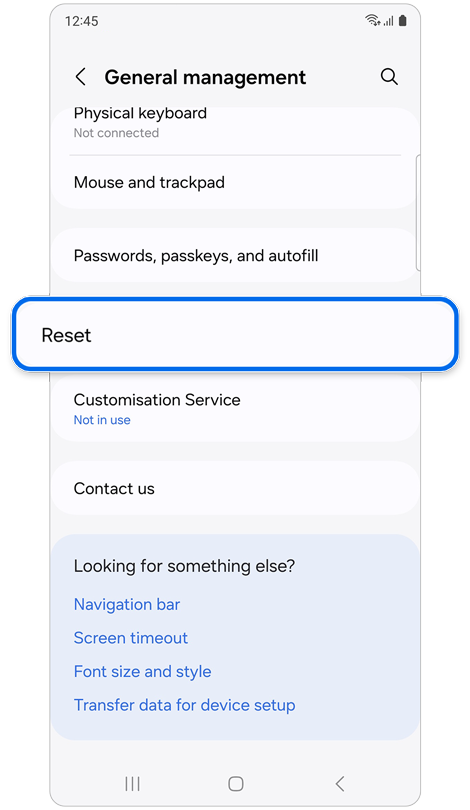
Step 1. Open Settings > Select General management > Tap Reset.
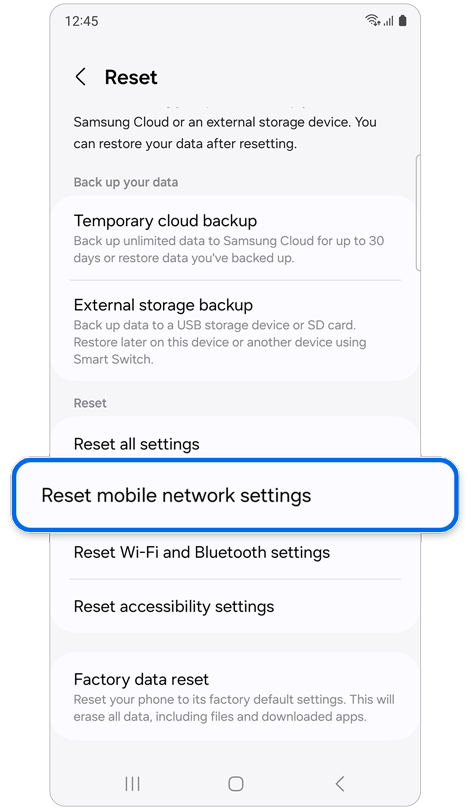
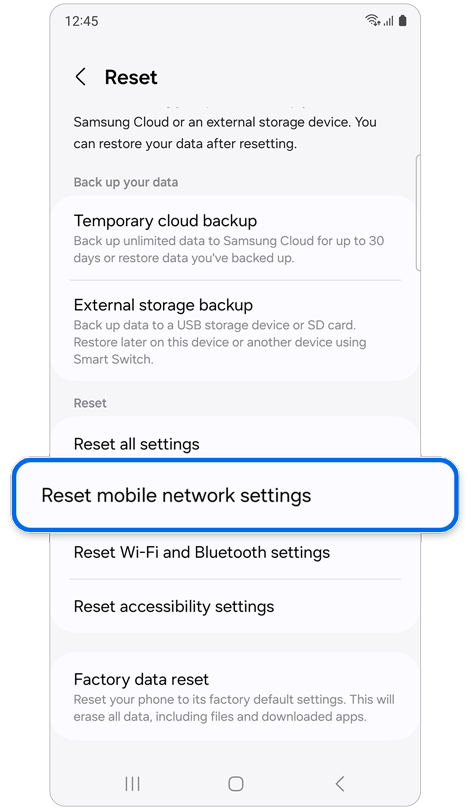
Step 2. Select Reset mobile network settings.
Note:
Images and menu options may vary depending on your device model, software version, service provider, and region.
Thank you for your feedback!
Please answer all questions.