About the updated Edge Panel and accessing the Smart select feature
On Samsung Galaxy devices running One UI 6.1.1 or later, Smart select is now integrated into the Apps panel within the Edge panel. You can access it by opening the Edge panel and selecting it directly.
This update simplifies access and removes the separate Smart select panel.
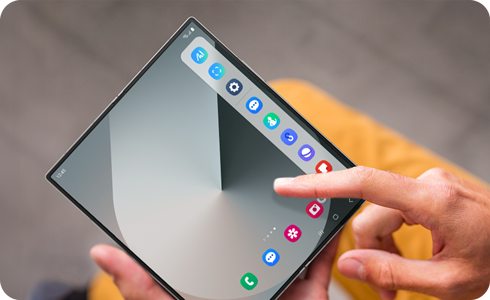
How to Access Smart Select and Edit the Apps Panel


Step 1. Swipe left from the top-right edge of the screen to open the Edge panel.
* You can activate the Edge panels in Settings > Display.


Step 2. Tap the Settings icon (appears briefly after opening).
* The settings icon appears for 3 seconds after you open the Edge panel, then disappears.


Step 3. Select Edit under the Apps panel.
Locate and use Smart select from the Apps panel.
Key Changes in One UI 6.1.1
- Smart select is no longer a separate panel.
- It is now pinned inside the Apps panel for easier access.
- The interface is simplified for quicker navigation.
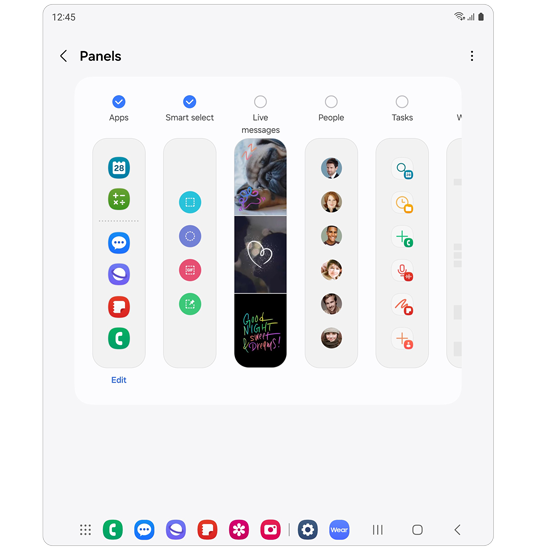
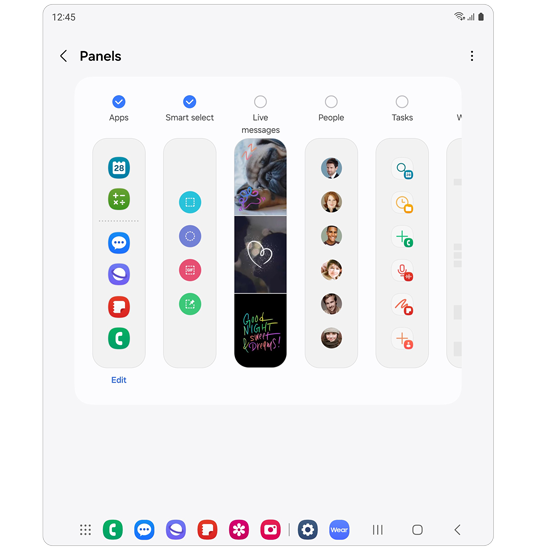
One UI 6.1.0 and previous versions
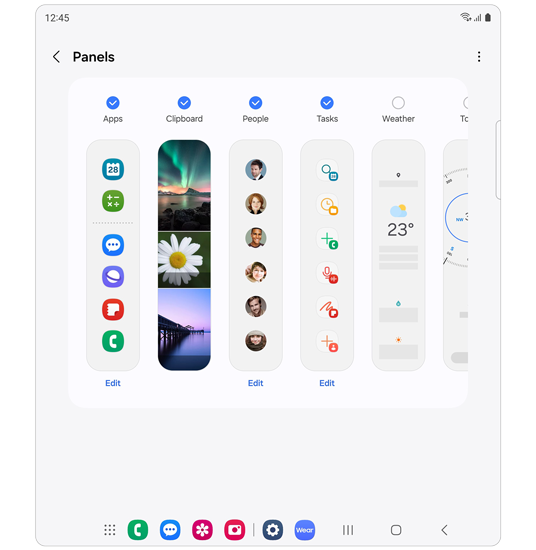
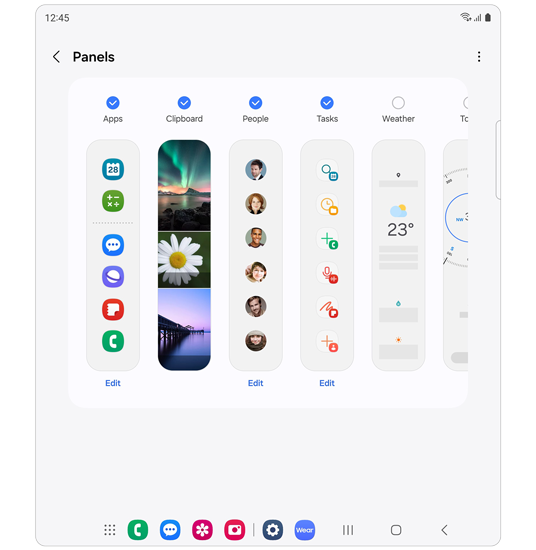
One UI 6.1.1 and later versions
How to Create GIFs Using Smart Select
Note: To use this feature, ensure your phone is updated to One UI 6.1.1 or later. Then, update the Galaxy Store and install the latest version of the Samsung Capture app (v5.8.64.4 or v5.8.61.4 for Tab S10) from the Galaxy Store.
How to create GIFs


Step 1. Open the Edge panel > Run Smart select.


Step 2. Select the area you want to create a GIF from > Tap Create GIF.


Step 3. Tap Record.
Thank you for your feedback!
Please answer all questions.